

EXISTING SERIES – NEW YEAR PROCESS
How to roll over your ATE for a new year.
- Open your document and save as for your new year.
- Go to Schedule Admin Tab – change months and dates for your new year.
- Go to Executive Members Tab – Delete Members who are showing as completed (See note about the correct way to delete)
- Go to Industry Expert Tab – Make any changes required.
- Go to Scheduling Matrix Tab – complete the clear and refresh process.
- Go to Schedule History – filter on the ESM column and remove any Member company no longer required. Remove blank lines left between entries.
- Save your document.
- Now you can add your new Members to commence your new year.
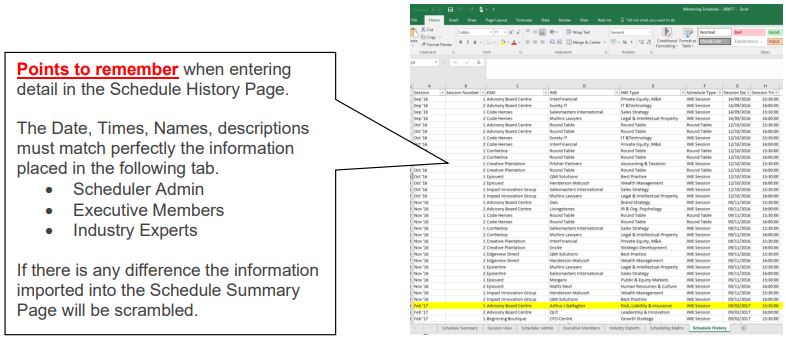
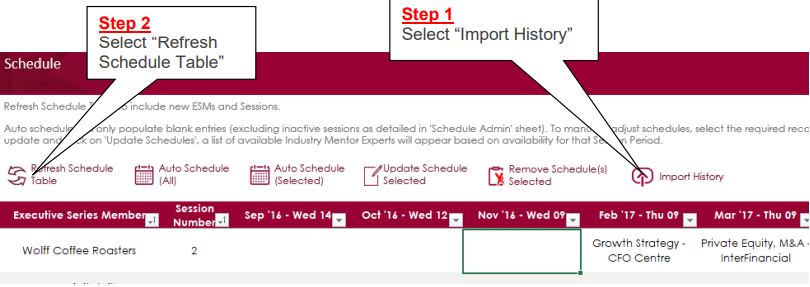
Loading information from history
(use this method to load history into the schedule)
The “Schedule History” Page holds all the schedules that have been created through the
“Schedule Summary” Page
In the event you delete or lose the information in the “Schedule Summary”, it is an easy set to
reload the information.
Ask the Expert Scheduler How to Manual